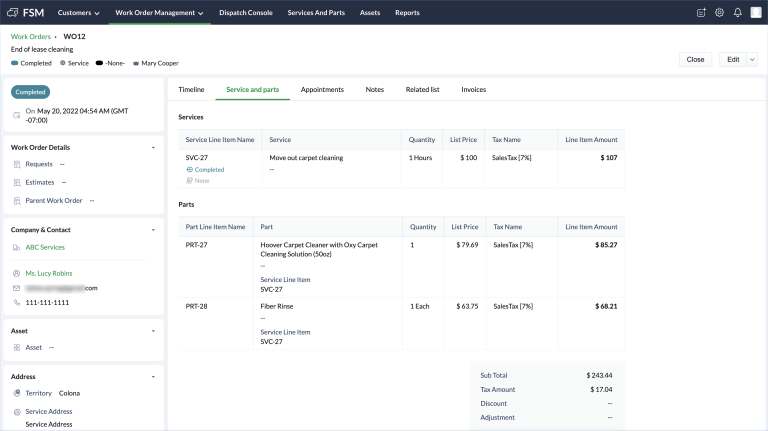
A work order is a record created for executing a contact service request.
Resolution
A Work Order can be created in one of the following ways:
From Requests: Use the Convert to Work Order option to create a work order for a request. This option will display the Create Work Order page with the field values pre-filled. Use the Requests to Work Order mapping to determine the Request field values that you want to pre-fill the fields in the Create Work Order page with. Refer to this page for details.
From Estimates: Use the Convert to Work Order option to create a work order for an estimate. This option will display the Create Work Order page with field values pre-filled. Use the Estimate to Work Order mapping to determine the Estimate field values that you want to pre-fill the fields in the Create Work Order page with. Refer to this page for details.
From contact phone Requests: The Customer Service Agent creates work orders for the contact requests received through phone calls.
To create a work order:
Select Work Orders from the Work Order Management menu and click Create.
Enter the following details, then click Save:
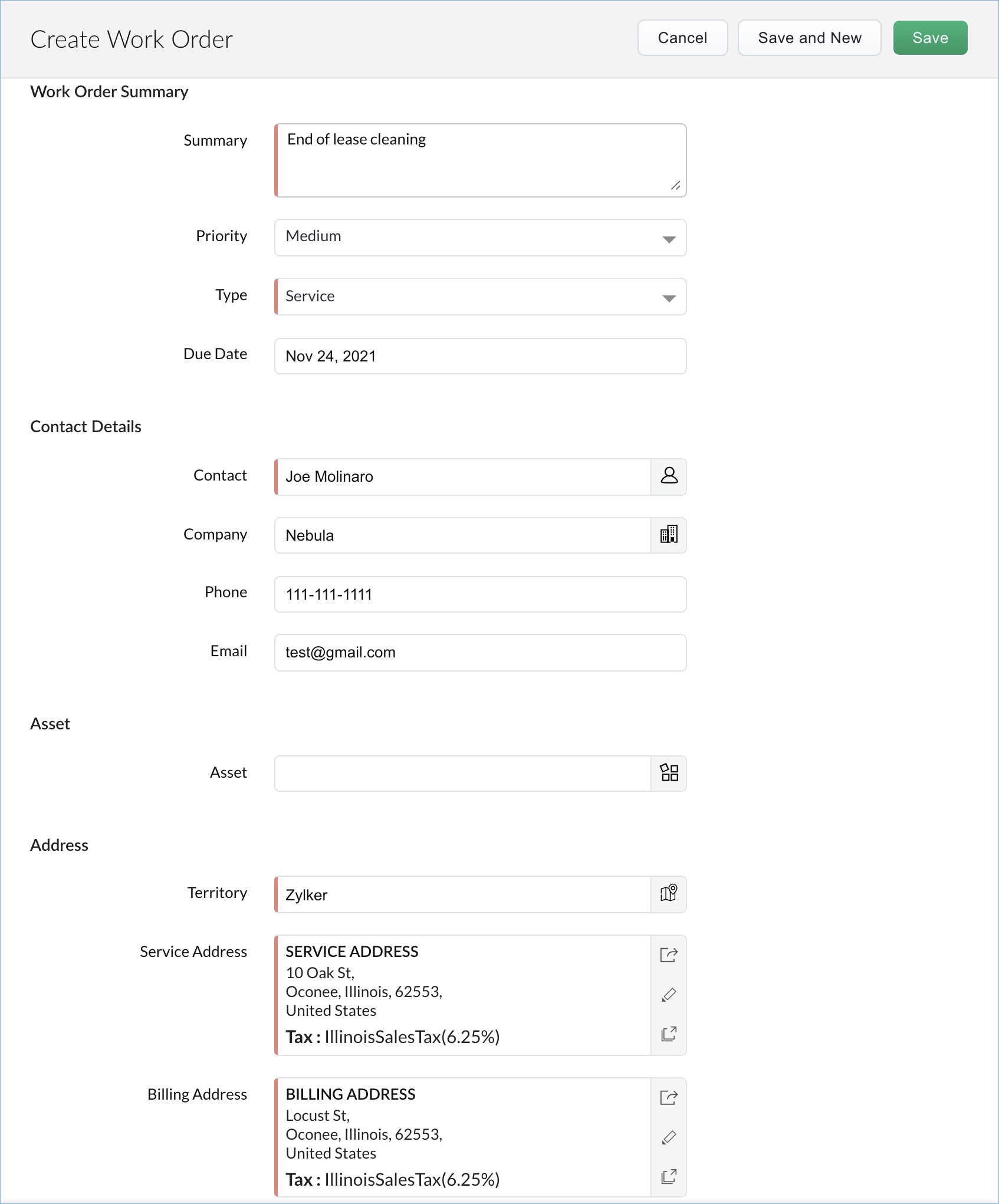
A Summary of the work order
A Priority
A Type to indicate the nature of the service the work order is being created for. Apart from the default values, you can also add custom values to this field.
A Due Date by which the work order should be closed
The Contact for whom the work order is being created
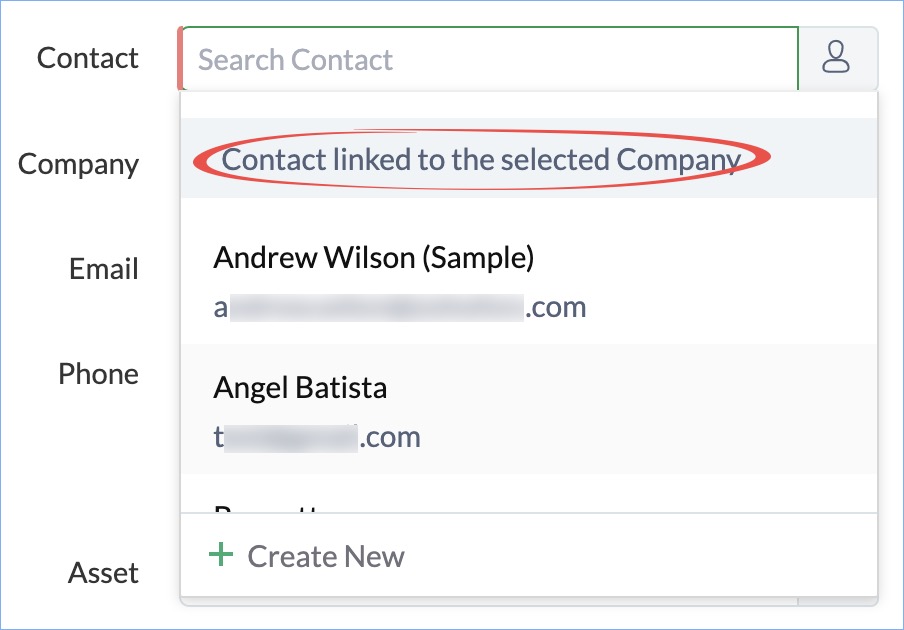
The Company the contact belongs to. Conversely, for a given company you can choose the contacts associated with it.
The Phone number of the contact
The Email address of the contact. If there is no email address associated with the contact, the email address of the company (if present) will be used.
An Asset. An Asset is added when the service is for a product that you have sold.
The Territory in which the contact is located
A Service Address. This is the address where the service needs to be carried out. The service address present for the Asset, Company, or Contact will be used, in this order of preference. You can choose any other available address or click Create New. Upon clicking Create New, the Add Address overlay will be displayed. To add a new address, enter the details and click Save.
A Billing Address
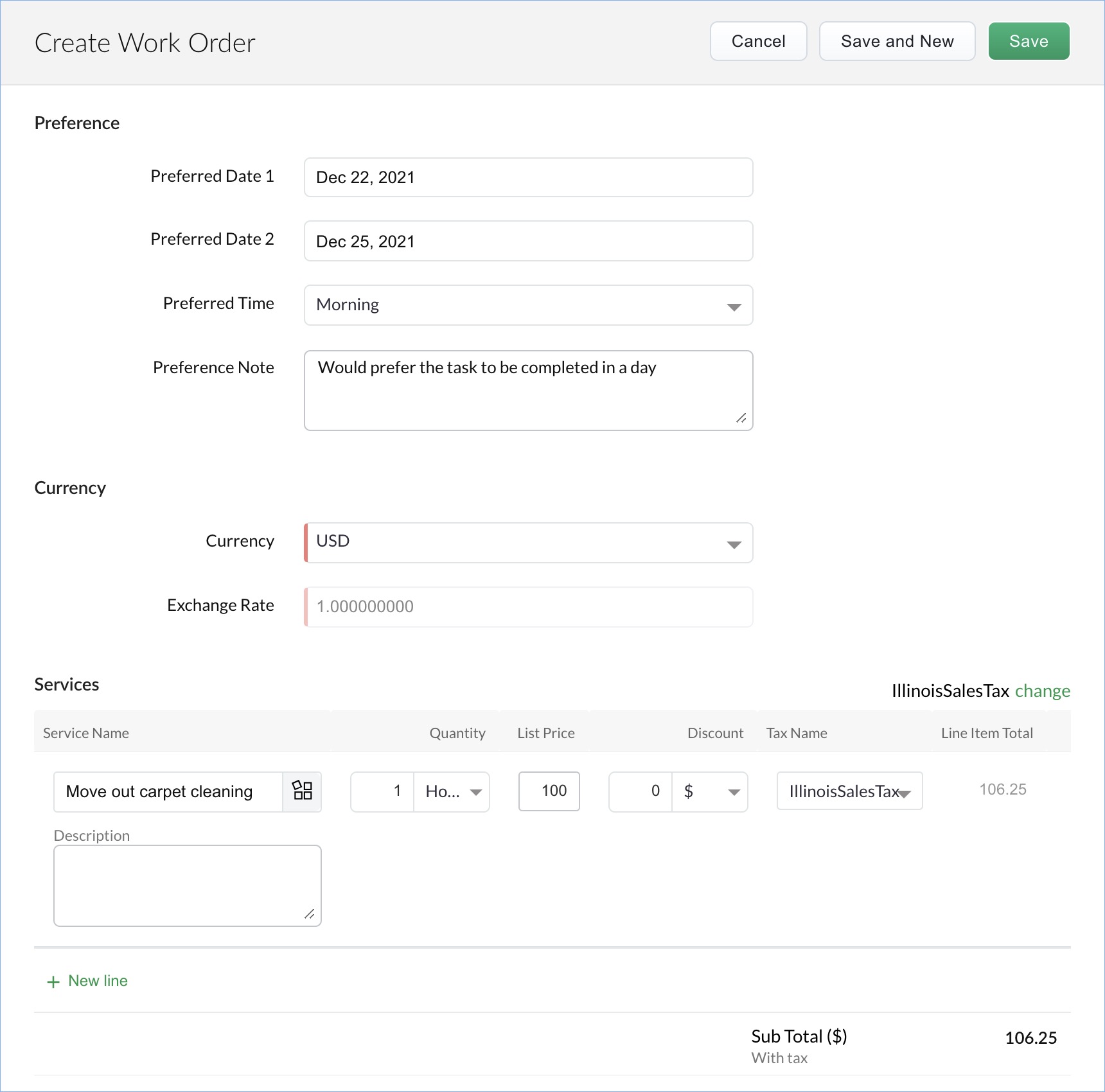
Preferred Date1, and Preferred Date2 for the service call
A Preferred Time.
Any additional Preference Note regarding the service call
Select a Currency. The Currency and Exchange Rate will be displayed only if multiple currencies are enabled.
Entries for Services. These denote the services which have to be delivered for this work order. The Services added in Services And Parts module will be listed here. You can search a service using its SKU. If only a single service is added, then it will by default get associated with the Parts, and Skills that you add. Service tasks, if present for the service will also get added.
Select a Tax Rate or choose non-taxable by providing a reason. Click here to find details about setting the tax rates. The default tax preferences will be set based on the sync settings.
Enter a percentage for the discount you wish to offer or a discount amount. You can choose whether to offer a discount at the line item level or the transaction level. Log in to Zoho Books/Invoice and navigate to Settings > Preferences > General > Do you give discounts? and choose the desired option.
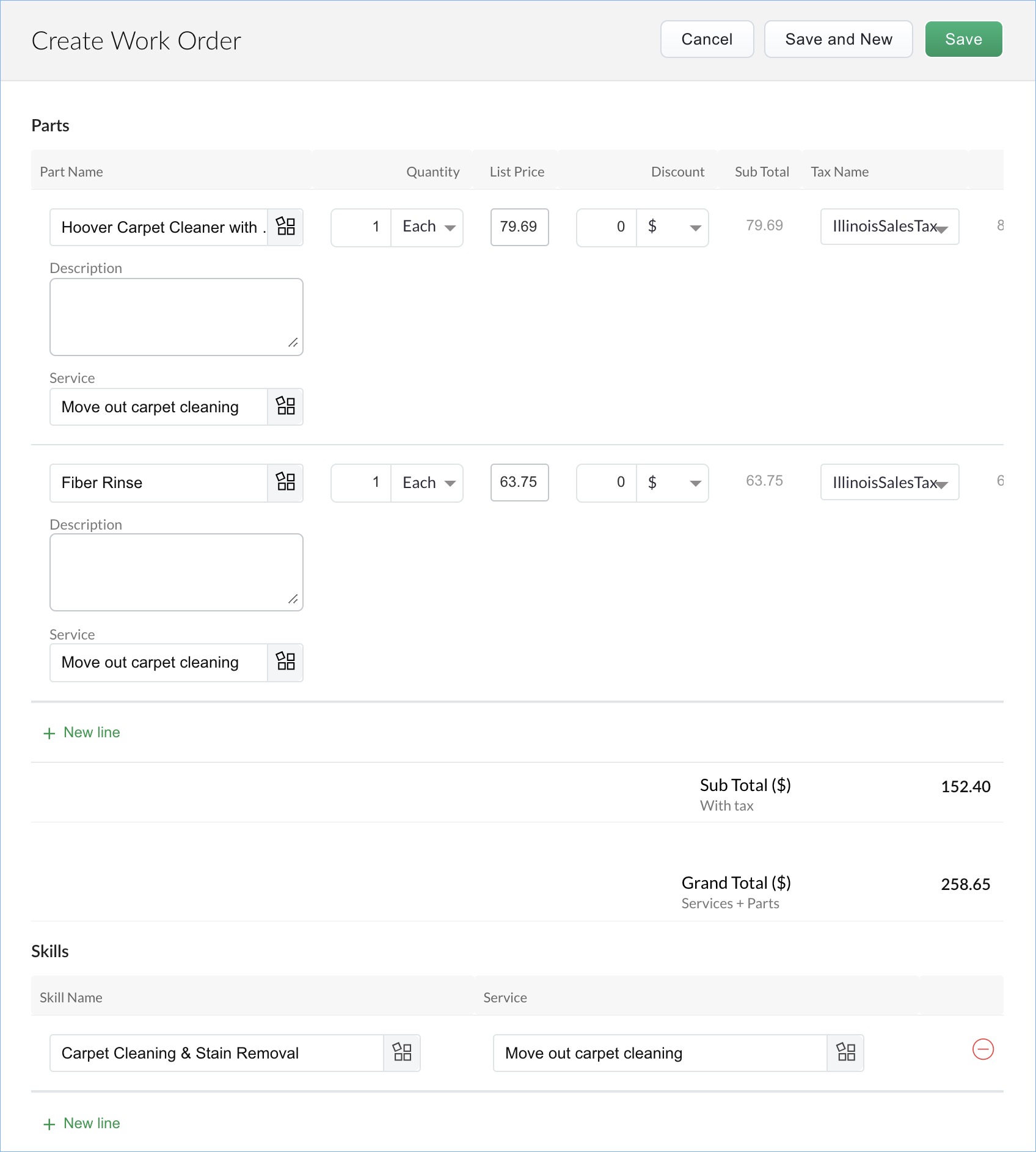
Add the Parts necessary for the services. Select the Service for which the Part has been added. You can search a part using its SKU. Select a Tax Rate or choose non-taxable by providing a reason. Enter a percentage for the discount you wish to offer or a discount amount.
Add the Skills necessary for the services. Select the Service for which the Skill has been added.
Skills: These denote the professional capabilities needed for the work order.
Parts: These denote the products which are required for carrying out this work order.
In the Work Order Details page, you will have the links to all its related records, such as Request, Estimate, and Appointments. A history of the activities on the record can be found under the tab Timeline.