
How to Setup Sage 100 with Gmail OAuth
Resolution
To set up OAuth for Sage 100 with Gmail, you’ll need to obtain a Client ID and Secret from Google Cloud Platform, then configure the email settings in Sage 100 to use OAuth with Gmail’s SMTP server.
Here’s a step-by-step guide:
1. Obtain Client ID and Secret from Google Cloud Platform:
- Go to the Google Cloud Platform
- https://cloud.google.com/
- Create a new project, and then navigate to “APIs & Services”.
- Select “OAuth consent screen,” choose “External” if you’re using a standalone Gmail account, and click “Create”.
- Fill out the application name and other required details.
- Click “Create credentials” and select “OAuth client ID”.
- Set the application type to “Web application” and name it appropriately.
- Under “OAuth 2.0 Client IDs,” you’ll find the “Client ID” and “Client Secret” that you’ll need for Sage 100.
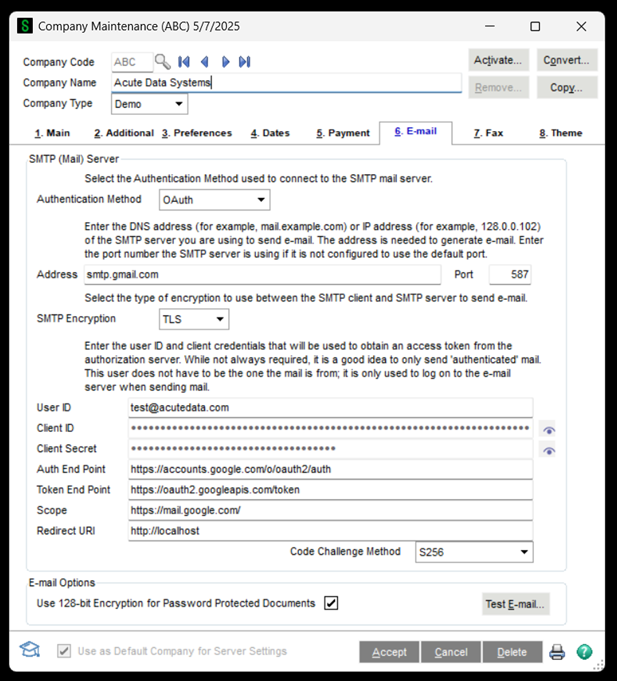
2. Configure Sage 100 Email Settings:
- Open Sage 100
- Navigate to Library Master / Main / Company Maintenance / Email Tab
- Select “OAuth” as the Authentication Method.
- Enter the following details:
- Address: smtp.gmail.com
- Port: 587
- SMTP Encryption: TLS
- User ID: Your Gmail email address
- Client ID: The Client ID obtained from Google Cloud Platform
- Client Secret: The Client Secret obtained from Google Cloud Platform
- Auth End Point: https://accounts.google.com/o/oauth2/auth
- Token End Point: https://oauth2.googleapis.com/token
- Scope: https://mail.google.com/
- Redirect URI: http://localhost
- Redirect Port: 3017
- Code Challenge Method: None
- Click “Accept” to save the changes.
- Test the email settings by clicking “Test Email”.