If you have enabled bank feeds for your bank account or if you import your bank statement to Zoho Books, you can match or categorize the bank transactions added to Zoho Books. You have to match or categorize these bank transactions to ensure that they match the transactions created in your Zoho Books organization. This will help you to reconcile your bank statements easily.
Match Transactions
Matching transactions is the process in which you match a bank statement with a transaction created in your Zoho Books organization. Here’s how:
Go to the Banking module in the left sidebar.
Select the bank account.
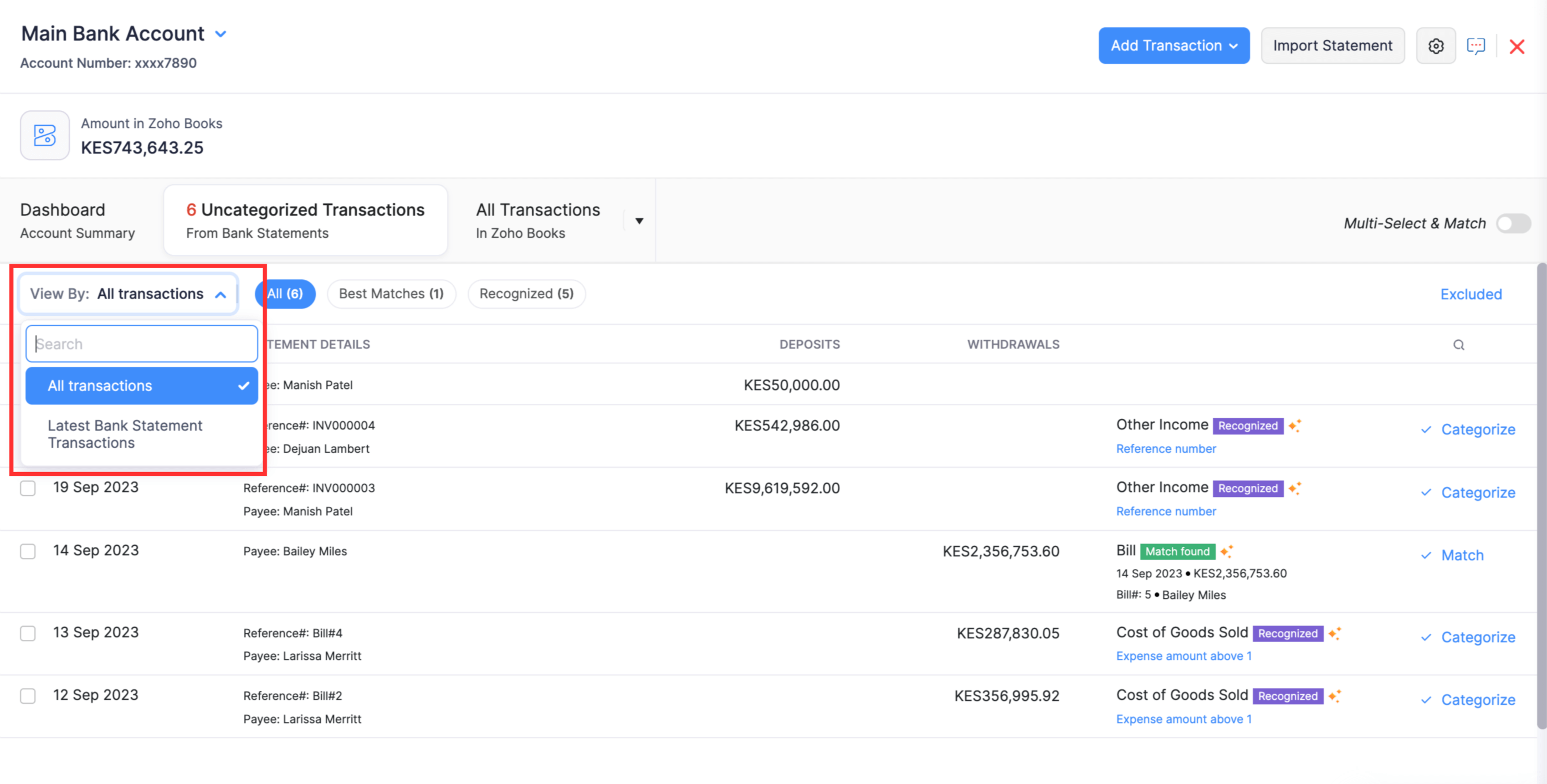
On the page that appears, go to the Uncategorized Transactions tab.
Click View By to filter only the uncategorized transactions of the latest bank statements if required.
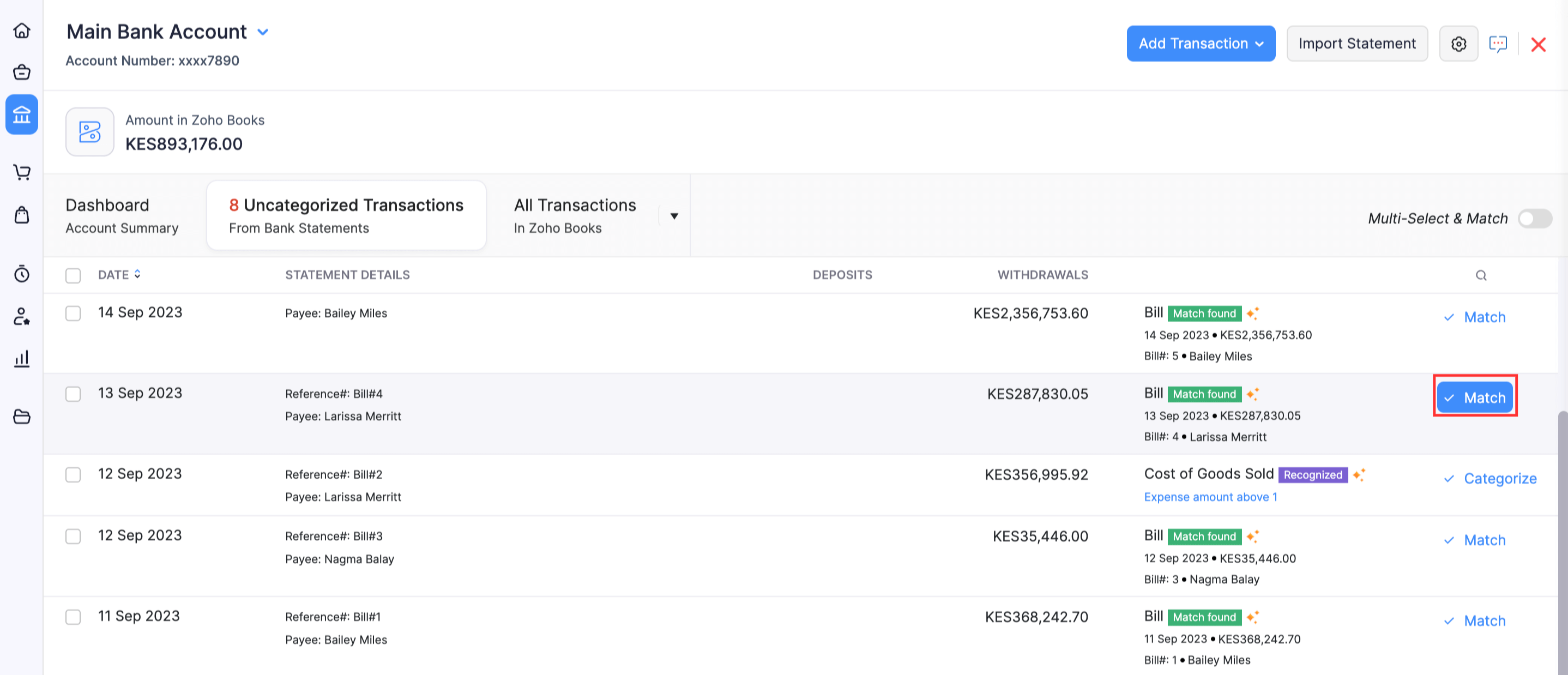
Pro Tip: If an uncategorized transaction meets the criteria to match with a transaction in your Zoho Books account, the Match found tag will be displayed next to it.
Click Match to match the bank statement with the transaction after verifying the transaction details.
For the uncategorized transactions that do not have the Match found tag:
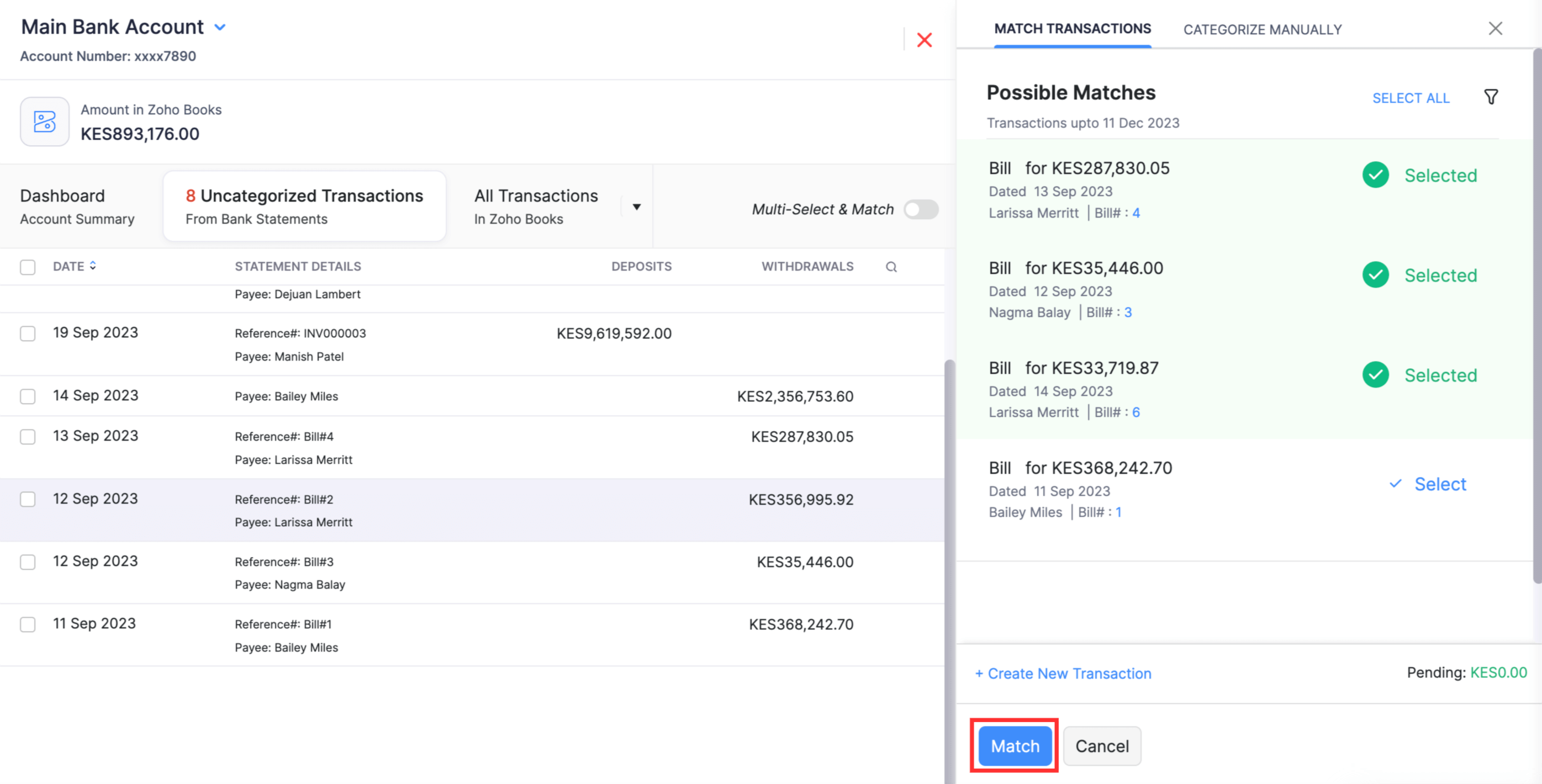
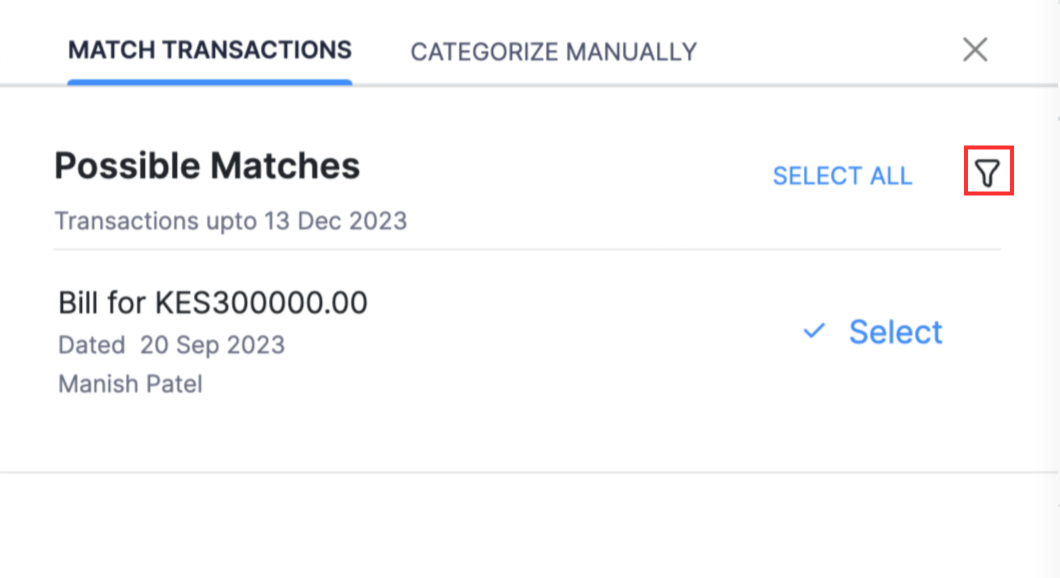
Click the transaction and in the pane that appears, you will find the list of the best possible matches for that transaction.
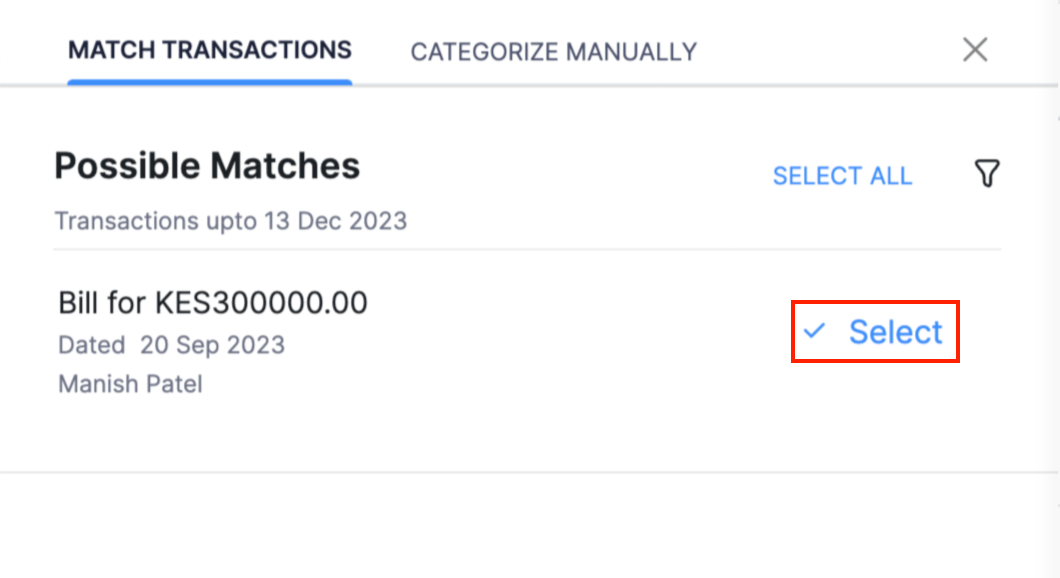
Click Select next to the possible match. You can select multiple transactions as well.
Once the amount of the selected transactions is equal to the amount of the uncategorized bank transaction, click Match.
Pro Tip: If there are many transactions listed under Possible Matches, there will be multiple pages. You can set the number of transactions per page.
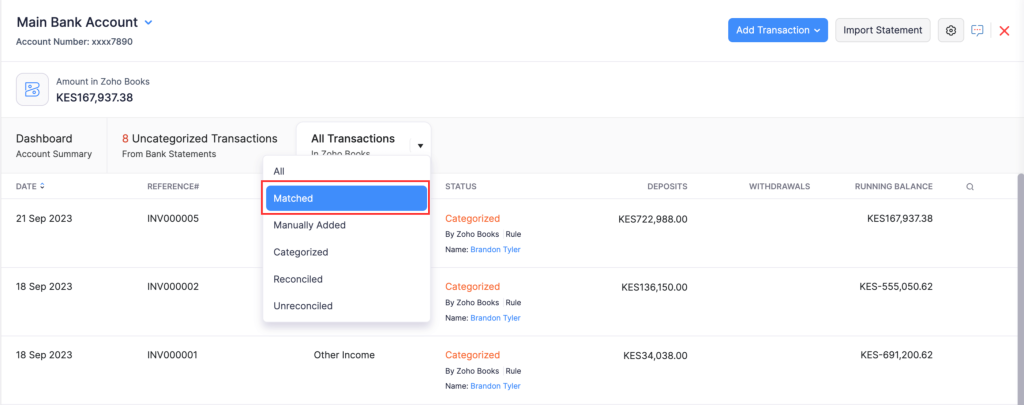
The uncategorized transaction will be matched and you can view the matched transactions in the Matched Transactions section. Here’s how:
Click the dropdown next to All Transactions and select Matched.
All the matched transactions will be available here.
Adding Adjustment while matching
Scenario: When you make payments through a payment gateway, you will be charged a certain percentage of the payment amount as a transaction fee. While trying to match such payments to a bill, the amounts will not be equal. For such cases, you can record the transaction fee as a new transaction.
To add a new transaction while matching a transaction:
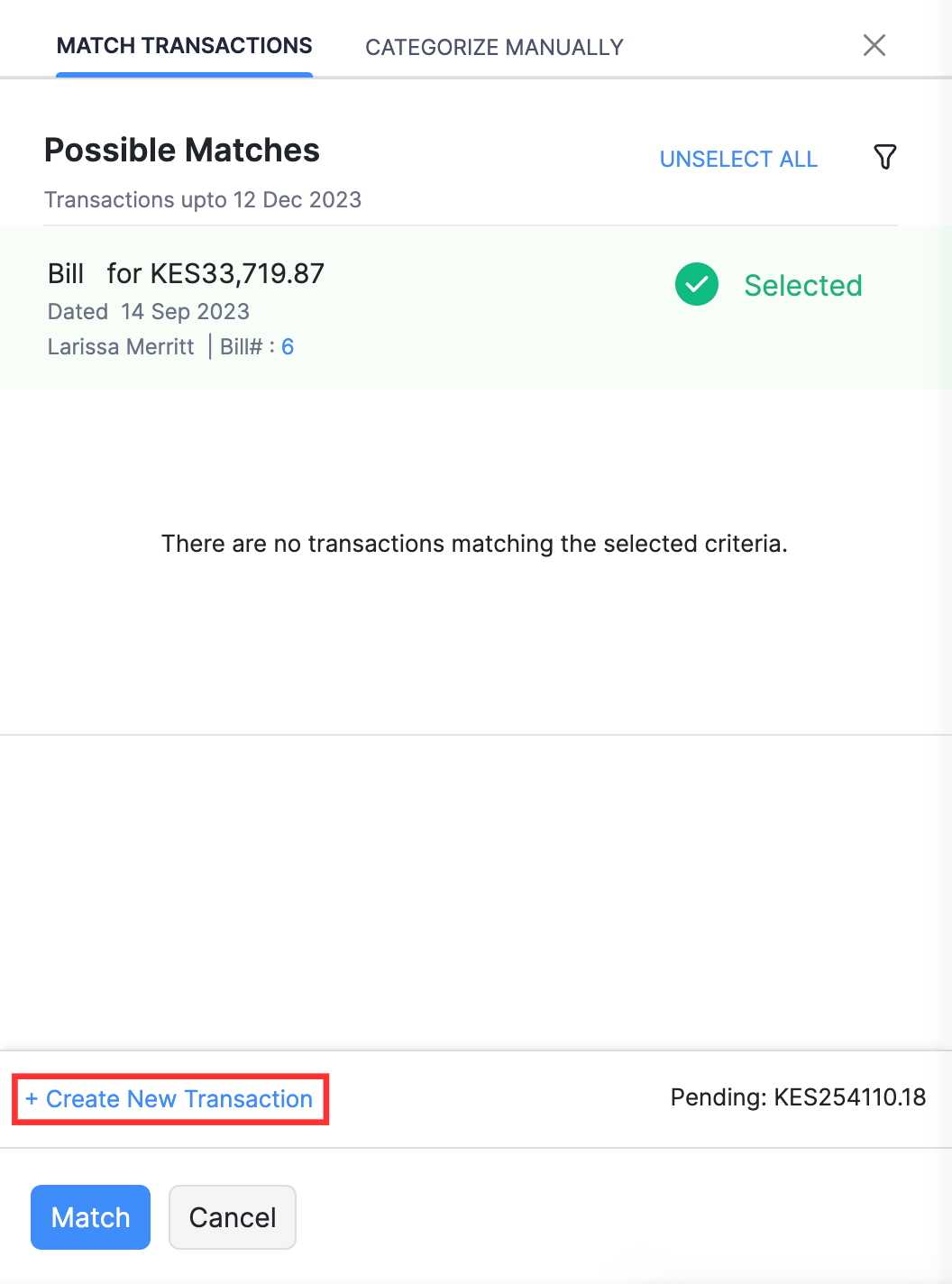
Click Select next to the transaction for which you want to add the new transaction.
Click + Create New Transaction at the bottom of the pane.
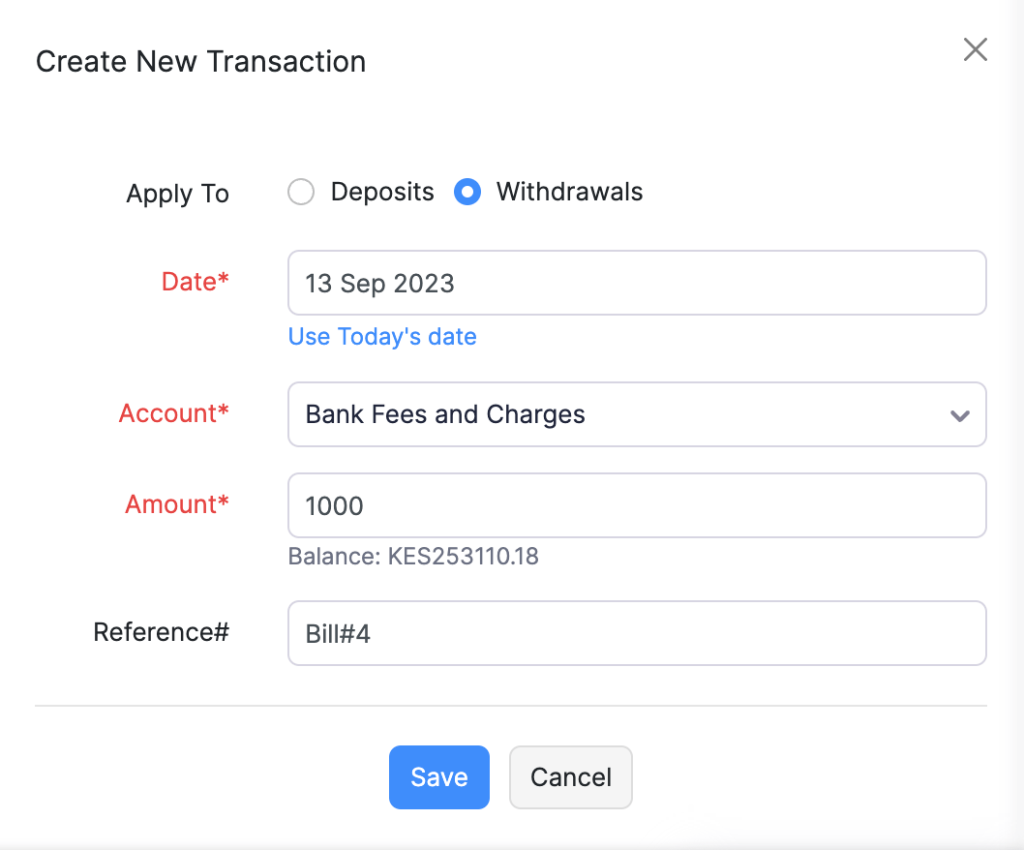
In the pane that appears, fill in the following details:
Fields
Description
Apply To
Select the type of transaction to which you will be applying the adjustment; Deposits or Withdrawals.
Date
Select the date when this transaction or adjustment was made
Account
Select the account to which the amount must be deposited or withdrawn
Amount
Enter the amount that you want to add as adjustment. The Balance amount is displayed below the amount.
Reference#
The reference number of the receipt (expense or deposit)
Click Save.
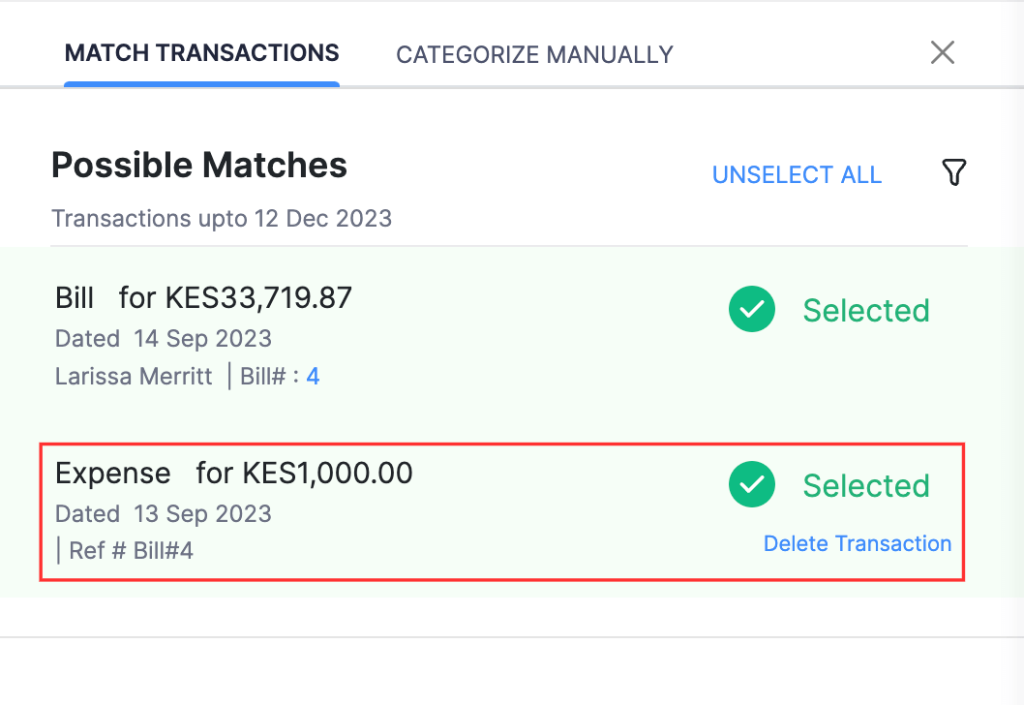
The new transaction will be listed along with the selected transactions and you can match it with the uncategorized transaction. Click Delete Transaction to remove the new transaction.
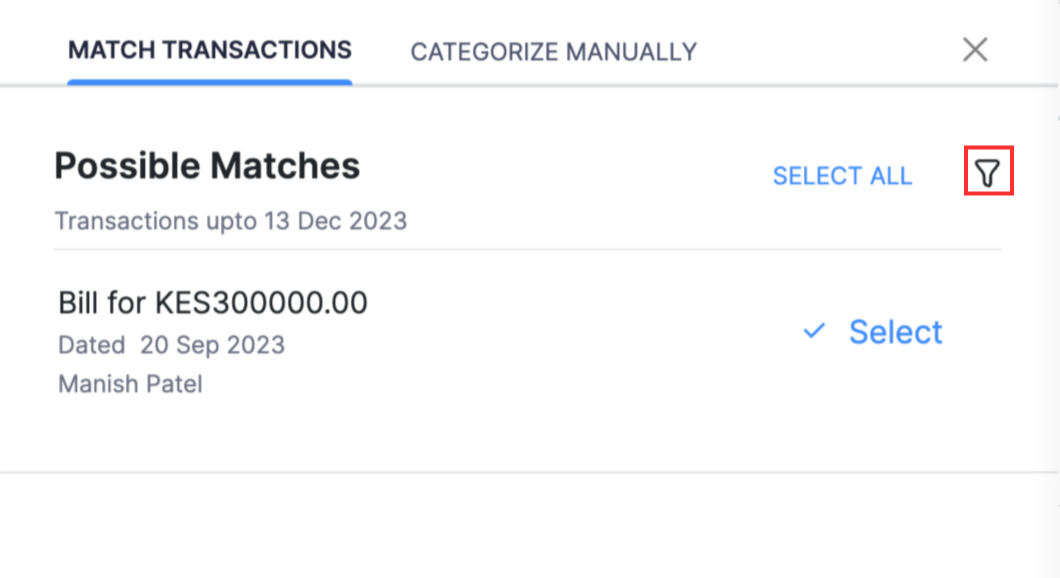
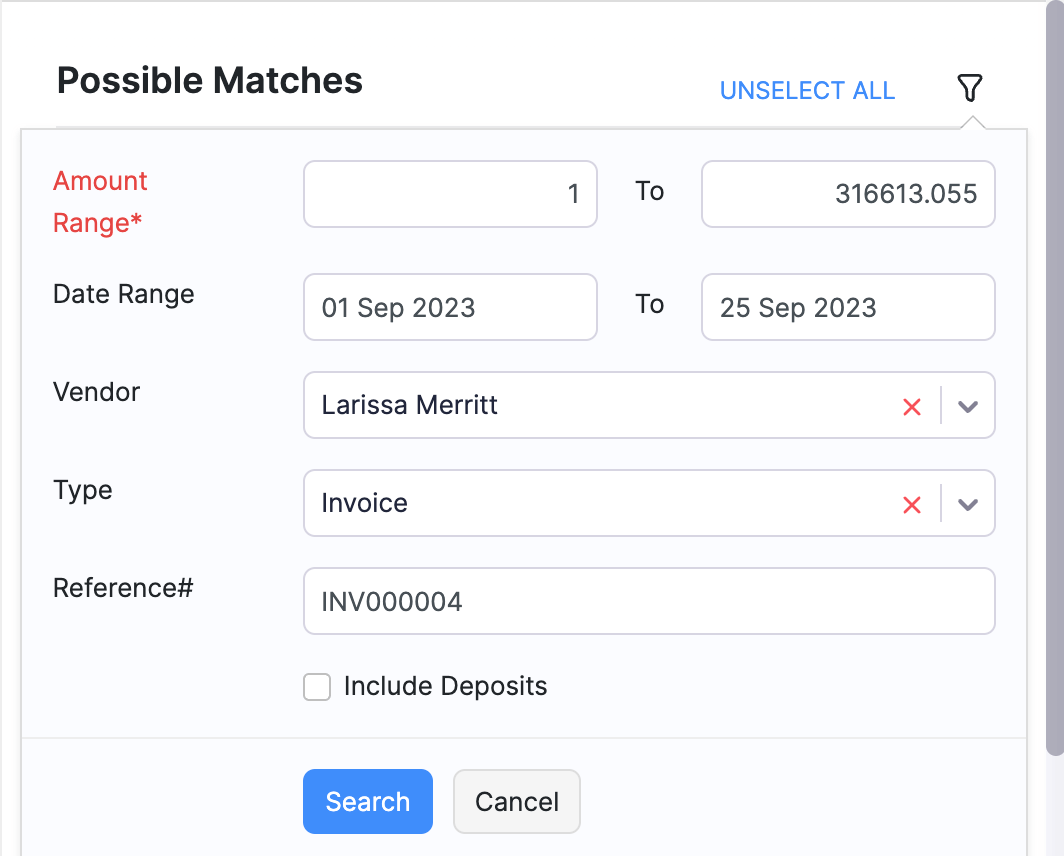
If you are not able to identify the transaction from the list of possible matches, you can apply a filter to search for a particular transaction. Here’s how:
Click the Filter icon next to Possible Matches.
In the modal that appears, fill in the following details:
Fields
Description
Amount Range
Enter the amount range of the transaction which you are looking for.
Date Range
Specify the date range within which the transaction has been made.
Vendor/Cutsomer
Select the vendor or customer for whom the transaction was created.
Type
Select the type of transaction from the dropdown list.
Reference#
The reference number of the receipt (bill, invoice, etc.,).
Click Search.
The transactions that meet the conditions set in the filter will be displayed in the Possible Matches section. Click Select next to the transaction to match it with the uncategorized transaction.
Pro Tip:
If the selected uncategorized transaction is a deposit, check the Include Withdrawals option in the filter if you want the filtered result to also include withdrawals when you are trying to match a deposit.
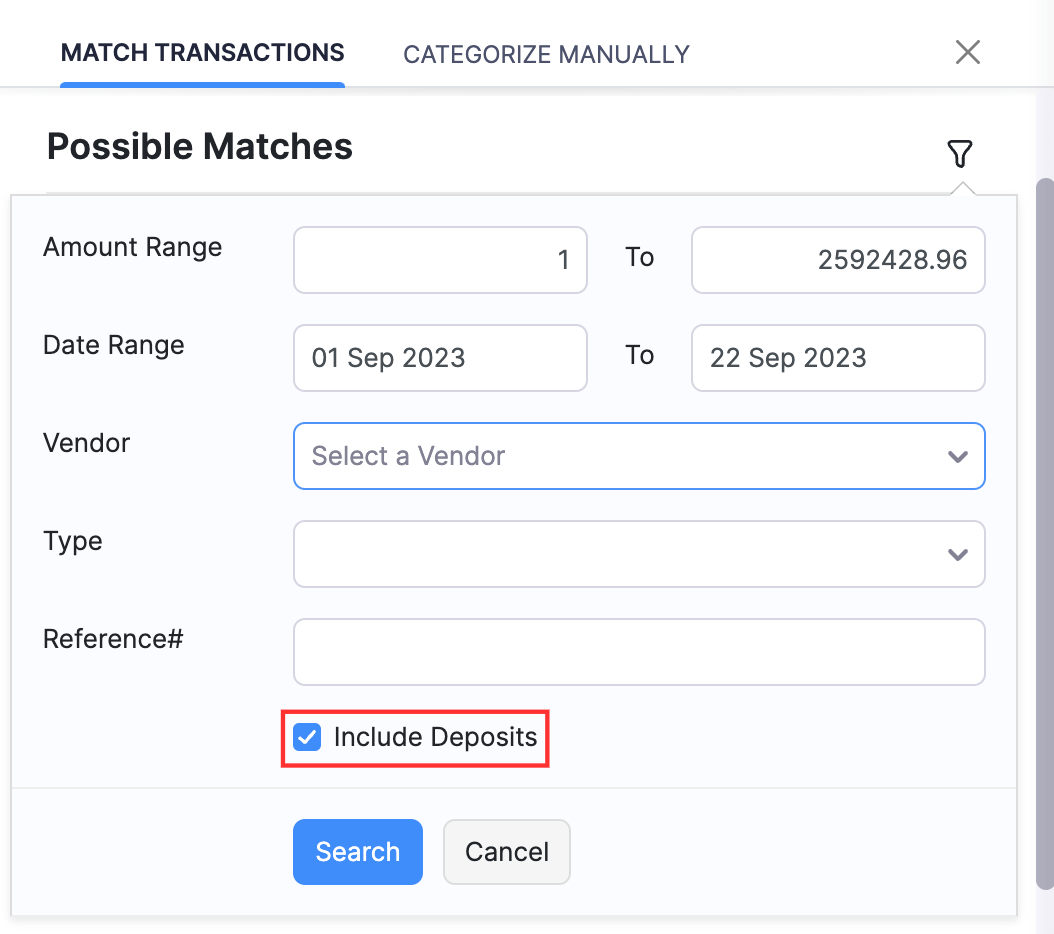
If the selected uncategorized transaction is a withdrawal, check the Include Deposits option in the filter if you want the filtered result to also include deposits when you are trying to match a withdrawal.
Match Deposits with Withdrawals
In Zoho Books, you can match your deposits with withdrawals. Let’s consider the following scenario.
Scenario: Patricia sells goods to John and receives services in return from him. She creates Invoices for the goods she sells to him and creates Bills for the services she receives from him. The payments that Patricia receives are Deposits and the payments she makes are Withdrawals. Let’s say, Patricia sells goods for 8000 to John and sends an Invoice to him for the same. Simultaneously, she receives services from him for 3000 and has a Bill for 3000. John pays Patricia 5000 for the Invoice of 8000 which becomes a Deposit. Now Patricia can match this transaction with the Bill of 3000 which is a Withdrawal.
To match a withdrawal with a deposit:
Select an uncategorized transaction that is a deposit.
In the pane that appears, click the Filter icon next to Possible Matches.
In the modal that appears, fill in the required details and check the Include Deposits option.
Click Search.
The filter list will display all transactions as well as the withdrawals.
Click Select next to the deposits with which you want to match the transaction.
Click Match once the amount of the selected transactions matches the amount of the uncategorized transaction.
Match Withdrawals with Deposits
Similarly, you can match Withdrawals with Deposits. This feature comes in handy if you are in the following scenario.
Scenario: Charles is a potential customer of Damro Furnitures. He creates a bill of 8000 and buys office furniture from Damro Furnitures. It offers him a cash back of 500 on this purchase. Charles records the cash back offer as Other Income, which in a Deposit. The Statement line from bank shows an Uncategorized Withdrawal transaction for an amount of 7500. Charles can match this Withdrawal with the Income of 500 which is a Deposit and with the Bill of 8000.
To match a withdrawal with a deposit:
Select an uncategorized transaction that is a deposit.
In the pane that appears, click the Filter icon next to Possible Matches.
In the modal that appears, fill in the required details and check the Include Deposits option.
Click Search.
The filter list will display all transactions as well as the withdrawals.
Click Select next to the deposits with which you want to match the transaction.
Click Match once the amount of the selected transactions matches the amount of the uncategorized transaction.