Automate the shift scheduling process for your employees using the shift pattern feature. This feature allows you to create shift patterns with a custom shift schedule for a week, month, or custom days based on your organization’s operational requirements. The created pattern can be mapped to employee groups, locations, departments, designations, roles, or specific employees. Once mapped, the shifts will be automatically scheduled and repeated according to the pattern until the effective date.
Advantages
Easy to create and assign custom shift schedules for your employees.
Automatically assigns shifts to employees based on the assigned pattern.
Transparency and consistency in scheduling shifts across teams and departments, which helps to ensure your workforce is aligned with your operational needs.
Improves employee satisfaction by providing fair and predictable shift timings.
Reduces scheduling errors and prevents conflicts in shift assignations.
Employee shifts can be modified according to your business needs with minimal adjustments.
Create Shift Pattern
To create a shift pattern:
Navigate to Settings > Shifts > Configuration > Shift Patterns, and click Add Shift Pattern.
To create a Shift Pattern using Gallery, refer to Shift Pattern Gallery below.
2. Enter a name for the Shift Pattern.
3. Select the pattern type as either Weekly, Monthly, or Custom.
To add a new shift and assign it to a pattern, refer to Add New Shift.
For weekly selection: The shift pattern changes weekly based on the selected pattern change week and the set shift pattern.
a. Select the pattern change week for your shift pattern as either:
Every 1, 2, 3, 4 or 5
Based on 1-6 calendar weeks in a month
c. In Define Shift Pattern, click on the (+) icon and select the required shifts for the weekly pattern.
If your selection is based on 1-6 calendar weeks, you can set the same pattern for all six weeks, for selected weeks (e.g., 1-3 with the same pattern and 4-6 with the same pattern), or a different pattern for each week.
d. To add a new weekly pattern, click Add New Pattern.
e. Click Preview Pattern to view the preview of the defined weekly shift pattern and its repetition sequence. You can only view the pattern preview for the next five months.
For monthly selection: The shift pattern changes monthly based on the selected pattern change month and the set shift pattern.
a. Select the pattern change month for the shift pattern.
b. In Define Shift Pattern, select the From and To days, then click the (+) icon to choose the shift for those days. Repeat to define shifts for the entire month.
You must define the shift pattern for all days in a month.
c. To add a new monthly pattern, click Add New Pattern.
d. Click Preview Pattern to view the preview of the defined monthly shift pattern and its repetition sequence. You can only view the pattern preview for the next five months.
For Custom selection: The shift pattern changes based on the pattern set for the custom days.
In Define Shift Pattern, select the From and To days, then click the (+) icon to choose the shift for those days. Repeat to define shifts for the custom days as required.
For example: – 1-90 days (9 AM-6 PM Shift) – 91-180 days (10 PM-6 AM PM Shift) – 181- 270 days (8 AM-5 PM Shift) and so on
b. Click Preview Pattern to view the preview of the defined custom shift pattern and its repetition sequence. You can only view the pattern preview for the next five months.
4. Once you defined the shift pattern, click Save. The shift pattern is ready to be mapped to your employees.
Shift Pattern Gallery
The Shift Pattern Gallery contains templates for creating shift patterns. The most commonly used shift pattern types are listed here.
Available pattern types:
Alternate Week Shift Pattern Employee works alternate weeks on shifts defined for week A and B.
4 on 4 off Shift Pattern Employee works 4 days on shift (typically 12-hour shifts), followed by 4 days off.
Monthly Shift Pattern Employee works in Shift A from 1-15 of a month, and shift B for the rest of the month.
Create Shift Pattern Using Gallery
To create Shift Pattern Using Shift Pattern Gallery:
Navigate to Settings > Shifts > Configuration > Shift Patterns, click the dropdown and select Shift Pattern Gallery.
Select the required pattern from the gallery and click Use Shift Pattern Template.
Enter a name for the Shift Pattern.
In the Define Shift Pattern, click on the (+) icon and select the required shift and click Save.
You can customize the Shift Pattern to your preference.
Map Shift Pattern
To map a Shift Pattern to your employees, refer to Map Shift Pattern.
Edit Shift Pattern
You can modify the existing shift patterns based on your operational needs.
To edit a shift pattern:
Navigate to Settings > Shifts > Configuration > Shift Patterns. A list of shift patterns that have been created is displayed.
Click on the shift pattern to edit.
3. Make the required changes to the pattern.
In the above image, we have changed the shift of 14th to last day of the month from US Shift to General Shift.
4. Click Save. The shift pattern is updated.
If the shift pattern is already mapped to the employees, the upcoming shift schedule will be automatically updated based on the revised pattern. The existing shift schedules will remain unchanged for those employees.
Delete Shift Pattern
To delete a Shift Pattern:
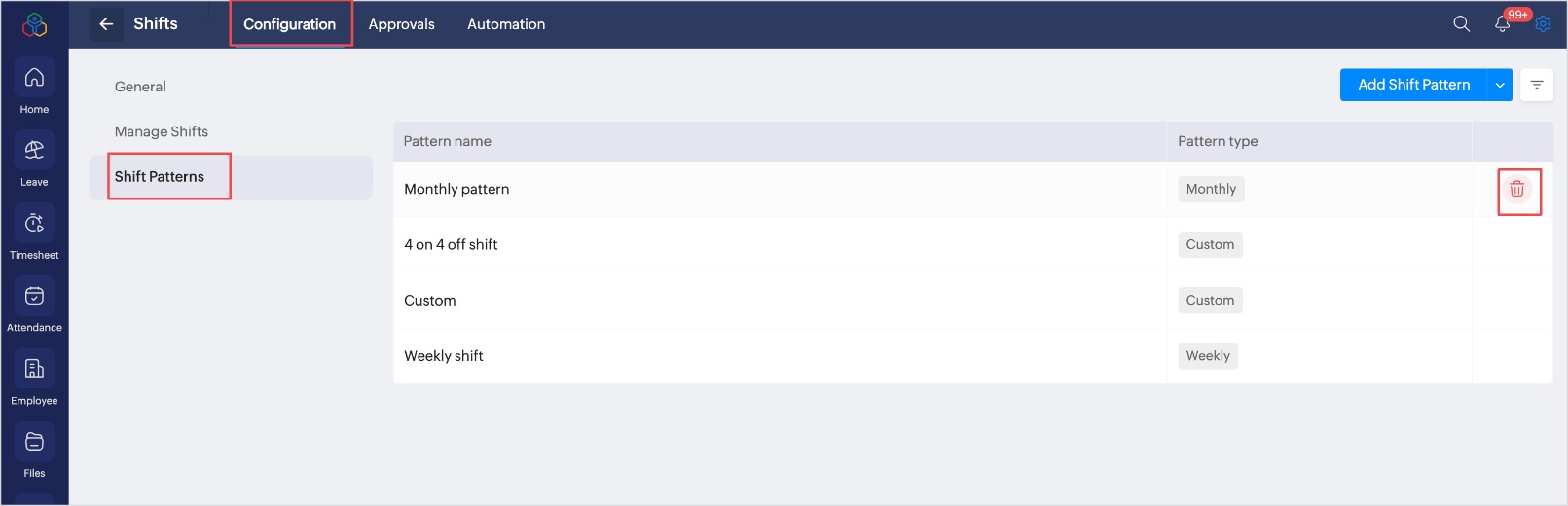
Navigate to Settings > Shifts > Configuration > Shift Patterns. You can view the list of Shift Patterns that are created.
2. Hover over the Shift Pattern, click on the Delete icon and click Confirm.
If the shift pattern is already mapped to the employees, the upcoming shift schedule will be automatically updated based on the revised pattern. The existing shift schedules will remain unchanged for those employees.
If you need to update the shift schedule for employees assigned to this pattern, go to Operations > Map Shift Pattern and assign a new pattern.