Before you can create a sales order in Zoho Books, you will need to ensure that the Sales Order module is enabled in Zoho Books. Here’s how you can do it:
Resolution
Click Settings on the top right corner of the page.
Click General under Preferences.
Check the SalesOrders option.
Click Save at the bottom of the page.
Now, you can create a sales order in Zoho Books. Here’s how:
Go to Sales > Sales Orders.
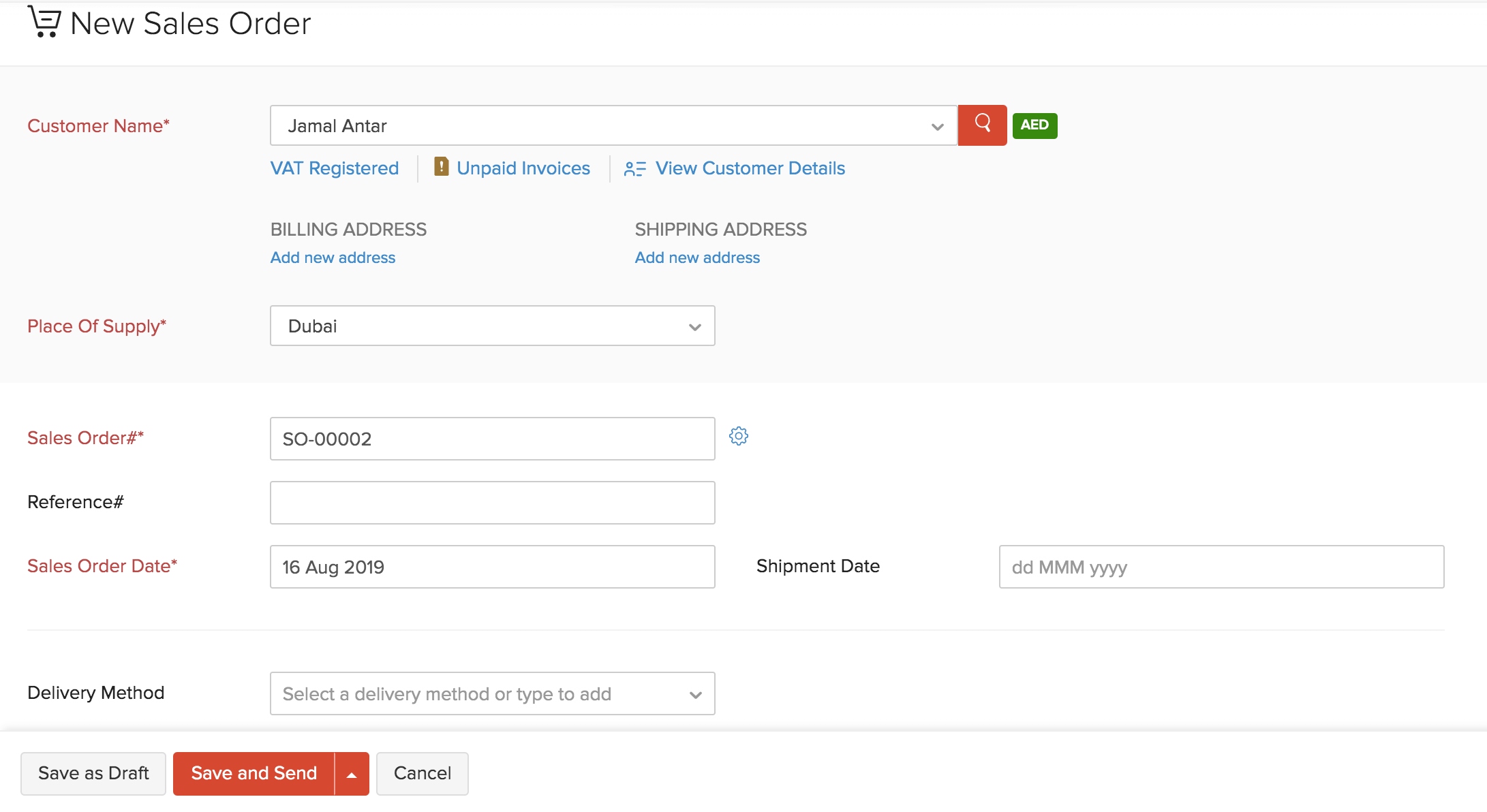
Click the +New button in the top right corner of the page.
Fill in the customer and item details, shipment date and any other fields which will be applicable for your sales order.
Click Save as Draft to create a draft or Save and Send to send it to your customer’s email address right away.
Convert to Open
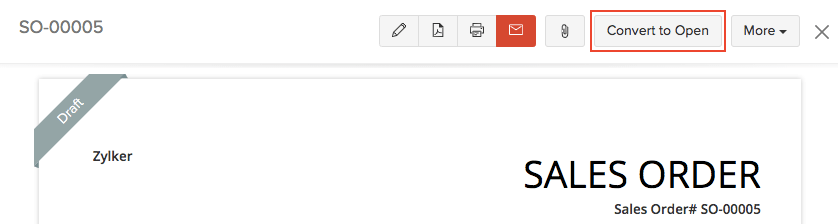
If you have saved your sales order as a Draft, you can convert it to the Open status to ensure that the sales order is active and shows up in your sales reports.
To mark a sales order as open:
Select the sales order (in the Draft status) which you want to convert to open.
Click Convert to Open in the top right side of the page.