
How To Allow Printing of Invoices In Sage 300 ERP
In this post, we are going to discuss the “Allow Printing of Invoices” feature in Sage 300 ERP.
We will begin by navigating to Accounts Receivable > A/R Setup > Options and click on the “Transactions” tab. On the upper left hand side of the settings window you will see the check box “Allow Printing of Invoices”
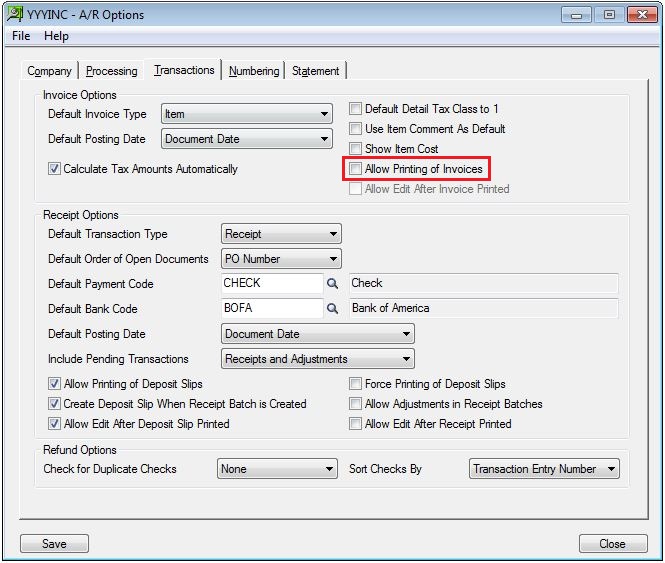
(The “Allow Edit After Invoice Printed” option is only available when “Allow Printing of Invoices” is already selected.)
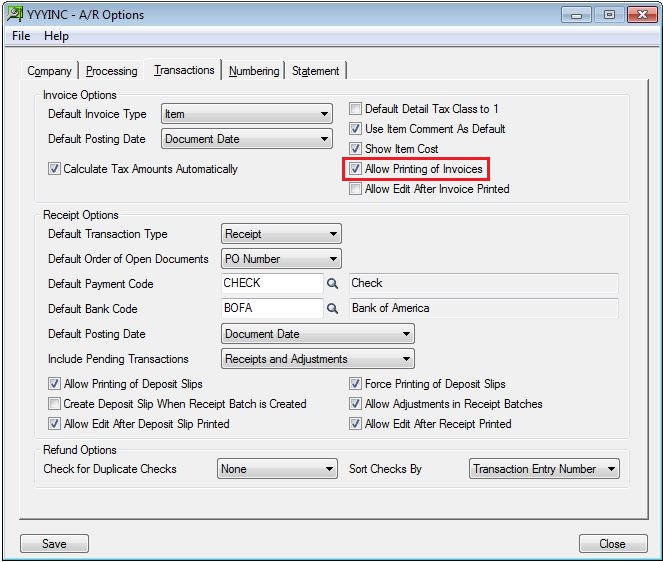
When this option is checked, it allows users to print invoices, as well as Credit and Debit notes from the Accounts Receivable > A/R Transaction > Invoice Entry Screen. In contrast when this option is left unmarked it does not allow users to print invoices from Accounts Receivable. With the “Allow Printing of Invoices” option selected, the user will see the “Print Invoice” button on the A/R Invoice Entry Screen and can print the invoice by clicking on this button.
(However if the check box is selected, the user will not be prompted to print the report while creating invoices, credit or debits. It will depend on the user’s settings on whether the report will need to be printed from the Accounts Receivable > A/R Transaction > Invoice Entry task or the Accounts Receivable > A/R Transaction Reports > Invoices.)
