
How to Manage Shifts in Zoho People
Shifts can also be managed from Operations > Shift > Manage Shift. The purpose of allowing access to manage shifts from the Operations space is to allow non-administrators who have been given exclusive access to Shift Operations to access this service without granting them access to Shift Settings, this ensures better security.

Resolution
Adding and Editing Shifts
To add a new shift click on Add Shift. To edit any added shift, simply click on one of the shifts listed here.
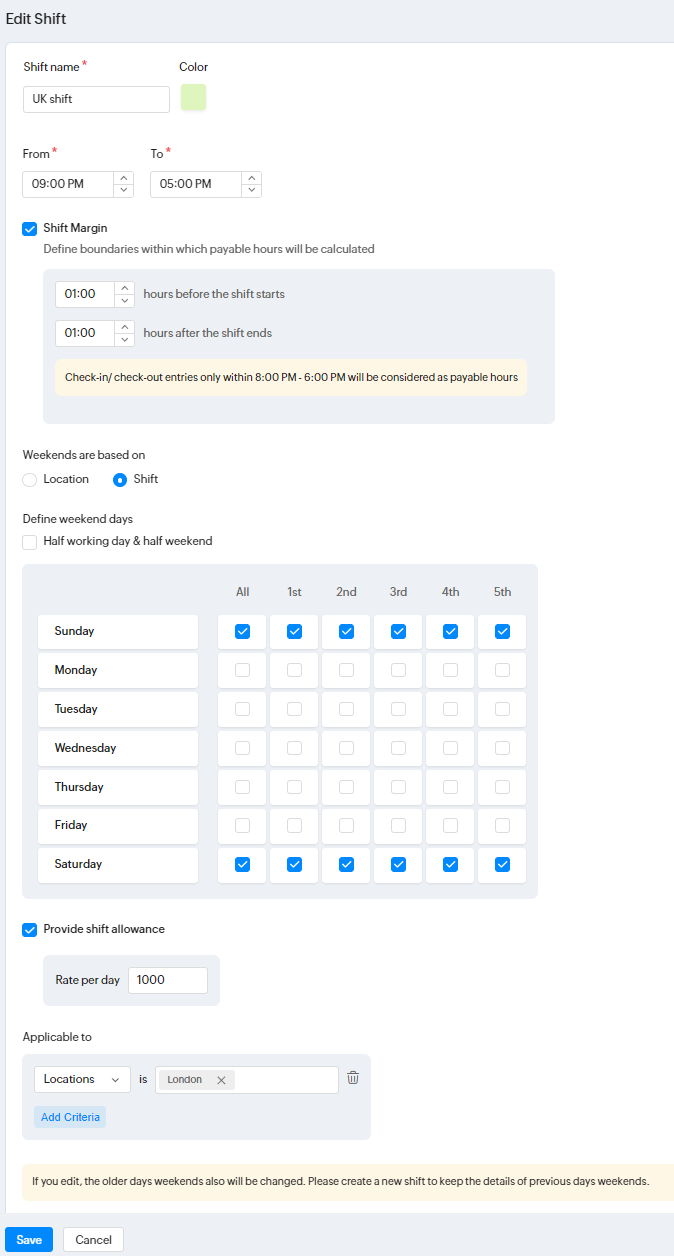
- Enter a shift name and choose a identification color.
- Specify the shift duration.
- If shift times are not too specific in your organization, you can allow employees to check-in / check-out earlier or later than the shift duration. Enable and adjust the Shift Margins preferences as required. With the settings depicted in the screenshot below, the shift starts at 9:00 AM and ends at 05:00 PM. However, employees can check-in as early as 08:00 AM and leave as late as 06:00 PM.
- Choose if weekends are based on location or shifts.
- If you want to have half working days or half weekends, then enable the corresponding option. On enabling this option, you can choose between a full day, first or the second half as the weekend. For example:

In this example, Sundays are holidays. However, the first half of all Saturdays are considered as a shift (half working day). 2nd half is considered as weekend.
6. If you wish to record shift allowance, then enable the Provide Shift Allowance option and provide the rate per day. This data is typically exported. The data can be accessed in the Attendance Tabular View and Presence hours break-up report.
7. Finally, select the applicable locations for this shift. Use the Add Criteria button to select departments or divisions within the selected location to have precise control over applicability.
8. Click Save
To customize aspects such as working hours, strict or lenient attendance modes, overtime and deviation calculation, imposing maximum work hours, time round-off, or grace period, check out the Specific Policy feature available through the Attendance service settings.