
How to set up Workers Compensation in Sage 100 Payroll
Summary
How to set up Workers’ Compensation in Sage 100 Payroll 2.x and legacy.
Description
Notes:
After records have been posted for a Workers’ Compensation Code, the ‘Calculation Method’ and ‘Overtime Calculation Method’ fields cannot be changed until year-end processing has been completed. The ‘Rate’ field can be changed, however, wait until the last Payroll for the period selected at the ‘Type of Limit’ field has been processed before making any changes. Changes to the rate are not retroactive for previously processed Payrolls; the change only affects future Payrolls.
NOTE: The SUI state field information following no longer applies to Payroll 2.x as the work location determines if the Worker’s Compensation field is available for the state in Employee Maintenance, Taxes tab.
NOTE: Legacy Payroll only – To calculate workers’ compensation for the SUI state instead of the primary state, you must set up a workers’ compensation code under the primary state, but enter the description, calculation method, rate, etc., of the SUI state.
Overtime Calculation Method examples:
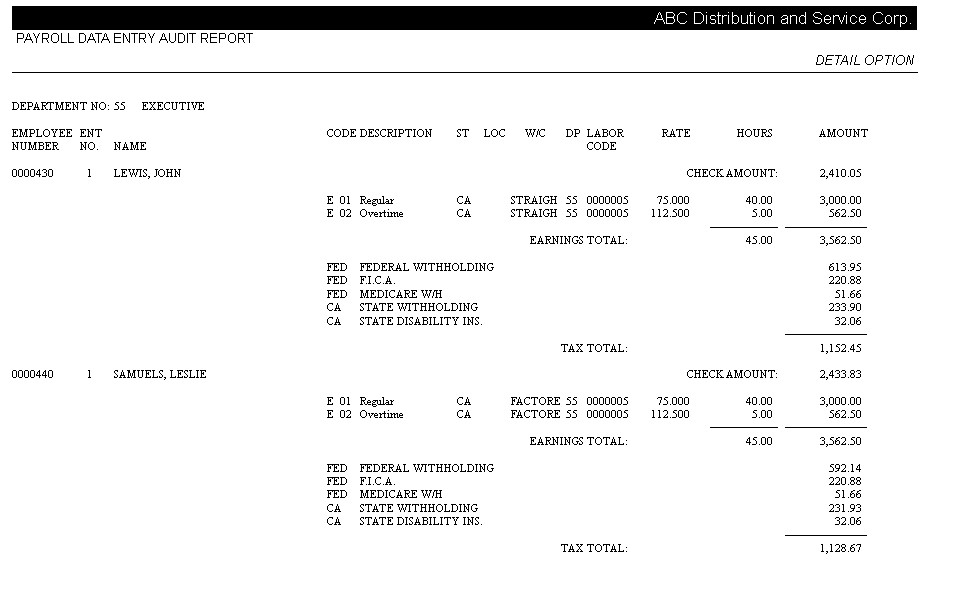
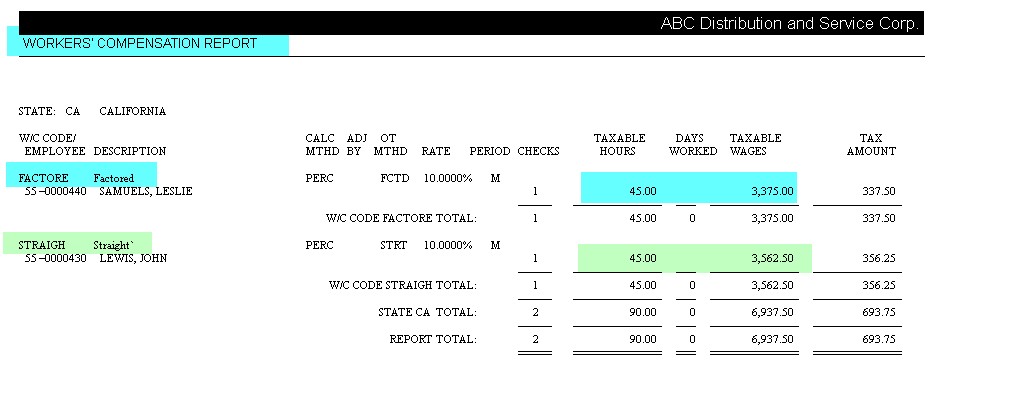
Straight is when Overtime type of earnings are calculated at the actual rate paid.
Example:
Regular | 40 hours | $75.00 | $3000.00 |
OT | 5 hours | $112.50 | $562.50 |
Gross Earnings |
|
| $3562.50 |
W/C calculation:
Regular | 40 hours | $75.00 | $3000.00 |
OT | 5 hours | $112.50 | $562.50 |
W/C Earnings |
|
| $3562.50* |
*earnings used to calculate W/C amount
Factored is when all Regular & Overtime types of earnings are calculated at regular pay rate 1 to calculate the earnings amount used to calculate workers comp.
Example:
Regular | 40 hours | $75.00 | $3000.00 |
OT | 5 hours | $112.50 | $562.50 |
Gross Earnings |
|
| $3562.50 |
W/C calculation:
ALL hours | 45 hours | $75.00 | $3375.00* |
*earnings used to calculate W/C amount
Resolution
Section I: Set up Workers’ Compensation Code
- Open Payroll, Setup, Workers’ Compensation Maintenance
- Select the state code from the lookup
- Set Workers’ Comp Code & Description
- Select a calculation method to indicate how the tax amount will be calculated. (Adjusted Percentage refers to gross earnings minus pension plan deductions, cafeteria plan deductions, or both.)
- If selected Adjusted Percentage additional field Adjusted By will need to be selected. Options are:
- Pension Plan to deduct pension plan contributions from gross earnings before the workers’ compensation tax amount is calculated
- Cafeteria Plan to deduct cafeteria plan deductions
- Both Plans to deduct both pension and cafeteria plan deductions
- If selected Adjusted Percentage additional field Adjusted By will need to be selected. Options are:
- Overtime Calculation Method is available only if an option other than Fixed Amount or Days Worked is selected at the Calculation Method field (Note: See Additional information section for examples of Straight and Factored OR calculation methods)
- Select Straight if overtime pay is taxed at a straight rate
- Select Factored if overtime pay is taxed at a factored rate (only the straight time portion of overtime is subject to the tax); if you selected Hours Worked at the Calculation Method field, the Factored option is not available
- Select None if overtime pay is not subject to this workers’ compensation tax
- Enter Tax Rate
- Select the Type of Deduction Limit. This field is used to determine the reporting period for this workers’ compensation code. This field also determines when the Workers’ Compensation codes can be changed
- If Monthly or Quarterly is selected, changes can be made after quarter end
- If Annual is selected, changes can be made after year end
- Set a contribution limit if needed.
- If Job Cost is integrated with Payroll, you will notice a button Cost Codes in the upper right corner.
- Enter cost codes for each workers’ compensation code in Workers’ Compensation Cost Code Maintenance that are used to default workers’ compensation code for each cost code and state entered in Payroll Data Entry.
- Worker’s compensation does NOT post to Job Cost cost codes.
- Job Cost Burden Rate or Job Posting entry are how to include the Worker’s Compensation paid by the employee or employer in the Job.
- Click Accept
- Note: Adjusted Percentage Calculations and Formulas
- When you are selecting the Adjusted Percentage as the Calculation Method with or without Adjusted by fields and the Overtime Calculation Method is Factored, the following formula is used to determine the wages subject to workers’ compensation:
- R = Regular Earnings
- OT=Overtime Earnings divided by the multiplier
- G= Gross Earnings
- CP=Total of Cafeteria Plan and/or Pension Plan deduction amount
- R + OT (R + OT) X CP = Workers’ Compensation Wages
- Wages are then multiplied by the W/C rate
- The formula for Adjusted Percentage by Cafeteria/Pension Plan with Overtime Calculation Method of Straight is:
- Gross Wages – Cafeteria/Pension Plan Deduction Amount = WC Wages
- The formula for Adjusted Percentage by Cafeteria/Pension Plan with Overtime Calculation as None is:
- Regular Earnings – (Regular Earnings divided by Gross multiplied by Cafeteria/Pension Plan Deduction Amount) = WC Wages
- When you are selecting the Adjusted Percentage as the Calculation Method with or without Adjusted by fields and the Overtime Calculation Method is Factored, the following formula is used to determine the wages subject to workers’ compensation:
Section II: Select the earnings codes that are subject to the Workers’ Compensation
- Open Payroll, Setup, Earnings Code Maintenance
- In each applicable earnings code, select the Subject to Workers’ Comp checkbox
- Click Accept
Section III: Setup G/L Accounts to post Workers’ Comp amounts to
Payroll 2.x.x (Sage 100 2018 and higher)
- Open Payroll, Setup, Company Tax Group Setup, select 1. Main tab
- Select Tax Group from the lookup
- In the Employer Workers’ Comp field, select applicable G/L Account No. from the lookup for the Accrual account
- Click Accept
- Open Payroll, Setup, Department Maintenance, select 1. Main tab
- Select each applicable department code from the lookup
- In the Workers’ Compensation field, select applicable G/L Expense Account from the lookup
- Click Accept
Legacy Payroll (Sage 100 2017 and lower)
- Open Payroll, Setup, Tax Table Maintenance
- Select State Code from the lookup
- In the Workers Comp field, select applicable G/L Accrual Account from the lookup
- Click Accept
- In Payroll, Setup, Department Maintenance
- Select each applicable department code from the lookup
- In the Workers Compensation field, select applicable G/L Expense Account from the lookup
- Click Accept
Section IV: Setup default workers’ compensation code for employees
Payroll 2.x.x (Sage 100 2018 and higher)
- In Payroll, Main, Employee Maintenance
- Select applicable Employee No from the lookup
- On the Taxes tab, for each necessary Tax Group line, select applicable Workers’ Comp Code from the lookup in the Workers Comp field
- Click Accept
Legacy Payroll (Sage 100 2017 and lower)
- In Payroll, Main, Employee Maintenance
- Select applicable Employee No from the lookup
- On the Wages tab, click Tax Status button
- Select applicable Workers Comp Code from the lookup
- Click OK
- Click Accept
Note: After entering payroll data entry, run the Employers Expense Summary report found in Payroll, Main (in the Workers Compensation section) and you will see the amounts that will be accrued for workers’ compensation for that payroll run.